20-Nov-2024
How to call RESTAPI from JDeveloper 10.1.3.5
How to call RESTAPI from JDeveloper 10.1.3.5
VO name
|
supplierVO
|
Query
|
select vendor_id, vendor_name from ap_suppliers
|


VO name
|
supplierSiteLov
|
Query
|
select vendor_site_code, vendor_id from
ap_supplier_sites_all
|


Name
|
supplierLovRN
|
Style
|
listOfValues
|
Available View Usages
|
supplierLov1
|
Region ID
|
supplierLov1
|
Region Style
|
Table
|
Selected view Attributes:
|
VendorId
VendorName
|
Go to VendorName (messageStyledText)
|
change
ID= VendorNameLov
Search Allowed = True
|
Go to VendorId (messageStyledText)
|
change
ID=VendorIdLov |


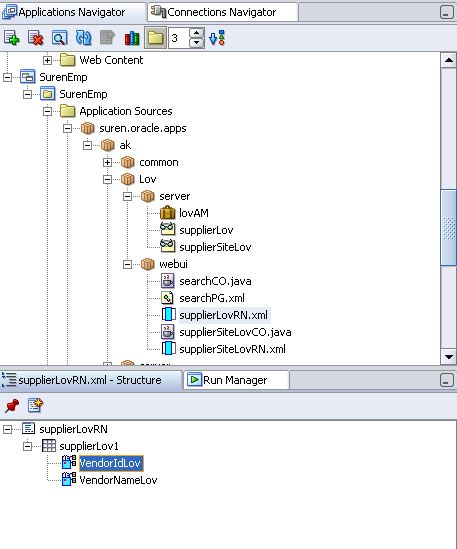

Region Style
|
listOfValues
|
Scope
|
Public
|
AM Definition
|
suren.oracle.apps.ak.Lov.server.lovAM
|

Name
|
supplierSiteLovRN
|
Style
|
listOfValues
|
Available View Usages
|
supplierSiteLov1
|
Region ID
|
supplierSiteLov1
|
Region Style
|
Table
|
Selected view Attributes:
|
VendorSiteCode
VendorId
|
Go to VendorSiteCode (messageStyledText)
|
change
ID= VendorSiteCodeLov
Search Allowed = True
|
Go to VendorId (messageStyledText)
|
change
ID=VendorIdLov |


Region Style
|
listOfValues
|
Scope
|
Public
|
AM Definition
|
suren.oracle.apps.ak.Lov.server.lovAM
|
Name
|
searchPG
|
Package
|
suren.oracle.apps.ak.lov.webui
|

Controller
|
suren.oracle.apps.ak.Lov.webui.searchCO
|
AM Definition
|
suren.oracle.apps.ak.Lov.server.lovAM
|


Region
|
messageComponentLayout
|
Define messageLovInput
|
Supplier
|
External LOV
|
/suren/oracle/apps/ak/Lov/webui/supplierLovRN
|


ID
|
supplieridFV
|
Item Style
|
formValue
|

ID
|
vendorLovMap
|
Lov Region Item
|
VendorNameLov
|
Return Item
|
supplier
|
Criteria Item
|
supplier
|

ID
|
parentVendorIdlovMap
|
Lov Region Item
|
VendorIdLov
|
Return Item
|
supplieridFV
|

Define messageLovInput
|
supplierSite
|
External LOV
|
/suren/oracle/apps/ak/Lov/webui/supplierSiteLovRN
|


ID
|
vendorSiteCodelovMap
|
Lov Region Item
|
VendorSiteCodeLov
|
Return Item
|
supplierSite
|
Criteria Item
|
supplierSite
|
Programmatic Query
|
False
|

ID
|
childVendorIdlovMap
|
Lov Region Item
|
VendorIdLov
|
Criteria Item
|
supplieridFV
|


1 2 | OADialogPage dialogPage = new OADialogPage(OAException.WARNING, instrMesg, null, "", null); |
1 2 3 4 5 6 7 8 9 10 | OAException instrMesg = new OAException("ICX", "CVICX_FREIGHT_TAX_WARNING"); OADialogPage dialogPage = new OADialogPage(OAException.WARNING, instrMesg, null, "", null); dialogPage.setOkButtonItemName("xxYes"); dialogPage.setOkButtonToPost(true); dialogPage.setOkButtonLabel("Continue"); dialogPage.setPostToCallingPage(true); |

1 2 3 4 5 6 7 8 9 10 11 12 13 14 15 16 17 18 19 20 21 22 23 24 25 26 27 28 29 30 31 32 33 34 35 36 37 38 39 40 41 42 43 44 45 46 47 48 49 50 51 52 53 54 55 56 57 58 59 60 61 62 63 64 65 66 67 68 69 70 71 72 73 74 75 76 77 78 79 80 81 82 83 84 85 86 87 88 89 90 91 92 93 94 95 96 97 98 99 100 101 102 103 104 105 106 107 108 109 110 111 112 113 114 115 116 117 118 119 120 121 122 123 124 125 126 127 128 129 130 131 132 133 134 135 136 137 138 139 140 141 142 143 144 145 146 147 148 149 150 151 152 153 154 155 156 157 158 159 | import java.io.ByteArrayInputStream; import java.io.ByteArrayOutputStream; import java.io.File; import java.io.FileInputStream; import java.io.FileOutputStream; import java.io.IOException; import java.nio.file.Files; import java.util.GregorianCalendar; import java.util.HashMap; import org.apache.pdfbox.pdmodel.PDDocument; import org.apache.pdfbox.pdmodel.PDDocumentNameDictionary; import org.apache.pdfbox.pdmodel.PDEmbeddedFilesNameTreeNode; import org.apache.pdfbox.pdmodel.common.filespecification.PDComplexFileSpecification; import org.apache.pdfbox.pdmodel.common.filespecification.PDEmbeddedFile; public class pdfBox { /** * Constructor. */ public pdfBox() { super(); } /** * create the second sample document from the PDF file format specification. * * @param file The file to write the PDF to. * * @throws IOException If there is an error writing the data. */ public void doIt( String path, String fileName) throws IOException { // the document PDDocument doc = null; try { // get primary file name doc = PDDocument.load(new File(path+"TEST-PDF.pdf")); HashMap efMap = new HashMap(); File file2 = new File(path); File[] listOfFiles = file2.listFiles(); for (int i = 0; i < listOfFiles.length; i++) { if (listOfFiles[i].isFile()) { System.out.println("File " + listOfFiles[i].getName()); //first create the file specification, which holds the embedded file PDComplexFileSpecification fs = new PDComplexFileSpecification(); File file1 = new File(path+listOfFiles[i].getName()); FileInputStream fis = new FileInputStream(file1); fs.setFile( file1.getName() ); byte fileContent[] = new byte[(int)file1.length()]; fis.read(fileContent); fis.close(); ByteArrayOutputStream bao = new ByteArrayOutputStream(); bao.write(fileContent); byte[] data1 = bao.toByteArray(); ByteArrayInputStream bin = new ByteArrayInputStream(data1); System.out.println(bin.available()); System.out.println("Start custom - 2"); PDEmbeddedFile ef = new PDEmbeddedFile(doc, bin ); //now lets some of the optional parameters // ef.setSubtype( fileType ); ef.setSize( data1.length ); ef.setCreationDate( new GregorianCalendar() ); ef.setModDate(new GregorianCalendar() ); fs.setEmbeddedFile( ef ); fs.setFileDescription("testing2"); efMap.put("Attachments"+i, fs); } else if (listOfFiles[i].isDirectory()) { System.out.println("Directory " + listOfFiles[i].getName()); } } //embedded files are stored in a named tree PDEmbeddedFilesNameTreeNode efTree = new PDEmbeddedFilesNameTreeNode(); efTree.setNames(efMap); // add the tree to the document catalog PDDocumentNameDictionary names = new PDDocumentNameDictionary( doc.getDocumentCatalog() ); names.setEmbeddedFiles( efTree ); doc.getDocumentCatalog().setNames( names ); doc.save( path+fileName ); doc.close(); } catch (Exception e){ e.printStackTrace(); System.out.println("Error"); } finally { if( doc != null ) { doc.close(); } } } /** * This will create a hello world PDF document with an embedded file. * <br> * see usage() for commandline * * @param args Command line arguments. */ public static void main(String[] args) throws IOException { pdfBox app = new pdfBox(); if( args.length != 1 ) { // app.usage(); app.doIt( "c:\\temp\\article\\","Embedded-file.pdf" ); } else { app.doIt( "c:\\temp\\article\\",args[0] ); } } /** * This will print out a message telling how to use this example. */ // private void usage() // { // System.out.println( ": " + this.getClass().getName() + " <output-file>" ); // System.err.println( "usage: " + this.getClass().getName() + " <output-file>" ); // } } |


